How to mute YouTube (and its ads) on a Mac
You’re heads-down on something, a YouTube tab is open in the background, one video ends and the next one autoplays, or worse, a mid-roll ad kicks in at a volume the actual video never hit. Suddenly your speakers are shouting a car commercial and everyone nearby knows exactly what you were watching. You just want it to stop, now, without a scavenger hunt through your tabs.
Here’s how to shut YouTube up fast on a Mac, starting with the built-in browser trick and then the one-click fix for when that isn’t enough.
Mute the YouTube tab in your browser
Every Mac browser can mute an individual tab, and this is the right first move when you know which tab is guilty.
Chrome: A tab playing audio shows a small speaker icon. Right-click the tab and choose Mute site, or click the speaker indicator directly. The tab stays muted until you turn it back on.
Safari: A blue speaker icon appears in the address bar whenever a tab has sound. Click it to mute that tab. Click and hold, and Safari offers to mute every other tab too, which is useful when you’re not sure which one is the noisy one.
Firefox: There’s a speaker icon right on the tab. Click to mute, click again to unmute.
You can also stop the problem at the source. YouTube itself has a mute button on the player (the speaker icon at the bottom-left, or just press m while the video is focused), and you can tell your browser to stop autoplaying media with sound. Safari’s Settings for This Website → Auto-Play → Never Auto-Play is the cleanest version of this.
Why the tab mute isn’t always the answer
The catch with per-tab mute is the same one that makes autoplay so annoying in the first place: you have to find the tab. If the YouTube tab is buried in a row of thirty tabs, sitting in another window, or parked in a different Space, muting it means hunting it down while the ad keeps playing. And pressing m in the player only works if that tab is the one you’re actually looking at.
There’s also the ad problem specifically. An unskippable ad often plays louder than the video you queued up, and muting the YouTube player mutes the video too, so you either sit through the ad’s noise or you mute everything and forget to turn it back on. What you usually want in that ten seconds is blunt and simple: make the browser quiet, and I’ll deal with the details after.
Mute the whole browser in one click
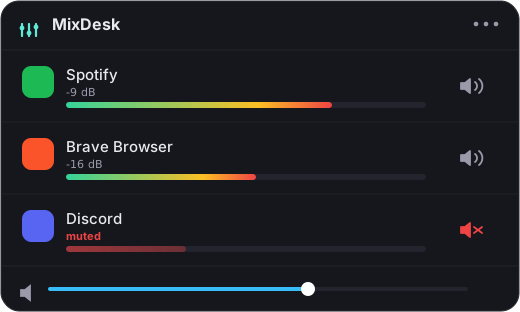
That’s the moment MixDesk is built for. It’s a small menu-bar volume mixer that lists every app currently making sound, with a live level meter next to each one and a mute button. When YouTube starts blasting, you click the MixDesk icon, see that Chrome (or Safari, or Firefox) is the app lighting up the meter, and hit mute. The browser goes silent instantly, from anywhere, without you ever finding the tab. Unmute is just as fast when the ad’s done.
Two honest points, because overpromising helps no one:
- MixDesk mutes at the app level, not the tab level. It silences the browser that the YouTube tab lives in, because the browser is the process producing the audio. macOS doesn’t hand individual tabs to other apps. If you truly need one tab silenced while another keeps playing, that’s the browser’s per-tab mute, above.
- MixDesk is not an ad blocker. It doesn’t skip or remove ads; it mutes them. It also doesn’t give you a volume slider for a browser: you can’t set Chrome to 40%. For browsers you get a live meter plus one-click mute. (Variable per-app volume sliders are reserved for scriptable music apps like Spotify and Apple Music.)
For the job of killing this YouTube noise right now, a meter that shows you which app is guilty plus an instant mute is faster than any tab hunt.
When to use which
If you know which tab it is and you want it quiet for the long haul, use the browser’s per-tab mute and per-site auto-play settings. They’re free and already built in, and they’re precise about exactly which tab goes quiet. If you keep getting ambushed by autoplay and ads and you’re done playing hide-and-seek with your tabs, a menu-bar mixer that surfaces every noisy app and mutes any of them in one click earns its keep.
That’s the whole idea behind MixDesk: see what’s making sound, and silence it instantly. It runs on macOS 14.2 and later on Apple silicon, processes everything on-device, and it’s $9 once with a 14-day free trial. Either way, no more surprise commercials at full volume.
Related reading
- How to mute a browser (Chrome, Safari, Firefox) on your Mac
- How to see which apps are using audio on your Mac
Frequently asked questions
Can MixDesk mute just one YouTube tab?
No. MixDesk works at the app level, so it mutes the whole browser that the YouTube tab lives in (Chrome, Safari, Firefox, and so on). That's because the browser is the process actually producing the sound; macOS doesn't expose individual tabs to other apps. If you specifically need to silence one tab while another keeps playing, use the browser's own per-tab mute. If you just want the noise gone right now, muting the browser from the menu bar is faster.
Does MixDesk block YouTube ads?
No. MixDesk is not an ad blocker. It doesn't stop ads from loading or skip them. What it does is mute them instantly. When an unskippable ad starts blaring, one click silences the whole browser, and you unmute the moment the ad is over. If you want ads gone entirely rather than just silenced, YouTube Premium or a content blocker is the tool for that job.
Does it work with YouTube in Chrome and Safari?
Yes. MixDesk mutes whichever browser is playing the audio, so it works with YouTube in Chrome, Safari, Firefox, Edge, Arc, or any other browser. It also works for the YouTube desktop app and for YouTube Music. It uses Apple's Core Audio process-tap API on macOS 14.2 and later, so there's no driver or extension to install.
Will muting YouTube this way pause the video?
No. Muting through the browser's tab control or through MixDesk only silences the audio. The video keeps playing. If you'd rather pause it, MixDesk offers play/pause transport for scriptable music apps like Spotify and Apple Music, but for a browser video the honest answer is that mute is what you get, not pause.
MixDesk does this for you
A menu-bar mixer with live meters and per-app mute. Free for 14 days.
Try MixDesk free