How to control the volume of individual apps on a Mac
If you came here from Windows, you already know what you’re missing. Right-click the speaker in the taskbar, open the Volume Mixer, and there’s a slider for every app. On a Mac, you get one slider. It controls everything at once.
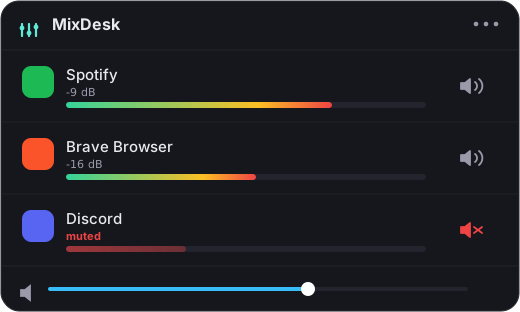
That single slider is the whole problem. When your music and a video call and a game are all going, macOS treats them as one blob of sound. Turn it down for the loud thing and you turn down the quiet thing too.
So what can you actually do about it? A few things, ranging from free-but-annoying to the kind that just works.
Option 1: Change the volume inside each app
The obvious one. Spotify has its own volume. So does VLC, and most video players, and every browser tab that’s playing something. If only one app is misbehaving, opening it and turning it down is the fastest fix.
The catch is that plenty of apps don’t have their own volume control at all. System notification sounds, a lot of games, Slack huddles, random web players. And even when an app does have a slider, hunting through three of them every time the balance shifts gets old fast.
Option 2: Use audio MIDI setup and aggregate devices
macOS has a hidden app called Audio MIDI Setup that lets you build “aggregate” and “multi-output” devices. People sometimes use it to split audio between outputs. It’s powerful, but it was never meant for per-app volume, and it won’t give you a slider per app. If you’ve ever tried to route one app’s sound somewhere specific, this is where you end up, and it’s fiddly enough that most people give up.
Option 3: A dedicated per-app mixer
This is the category that actually solves it. A handful of Mac apps sit in your menu bar and give you back the mixer that macOS forgot. The well-known ones, like Rogue Amoeba’s SoundSource, do a lot and cost around $47.
The reason these tools exist as separate downloads (and not on the Mac App Store) is worth knowing: reading and controlling another app’s audio needs system-level access that Apple’s sandbox doesn’t hand out. So every serious one ships directly from its maker.
What I’d actually recommend
If one app is the problem and it has its own volume, just use that. No download needed.
If you’re constantly rebalancing several apps, or you want to mute a single app without pausing your music, get a mixer. That’s exactly what MixDesk does. It lives in your menu bar, shows a live level meter next to every app making sound, and lets you set each app’s volume or mute it on its own. It uses the audio-tap feature Apple added in macOS 14.2, so there’s no driver to install and nothing that can break your sound after an update.
It’s a one-time $9 rather than a subscription, and there’s a two-week trial so you can see whether it earns a spot up there before you pay.
Related reading
- How to mute one app on a Mac without muting everything
- Why doesn’t macOS have a volume mixer like Windows?
- How to see which apps are using audio on your Mac
Frequently asked questions
Can I set any app to a specific volume like 40%?
For scriptable music apps (Spotify and Apple Music), yes, MixDesk gives you a real per-app volume slider. For other apps, such as browsers or games, macOS doesn't expose a variable level, so MixDesk offers one-click mute instead. If you need variable volume for every app, SoundSource is the honest choice.
Do I need to install an audio driver or extension?
No. MixDesk uses Apple's Core Audio process-tap API added in macOS 14.2, which runs entirely on-device with no virtual audio driver or system extension to install. So nothing can break your sound after a macOS update.
How much does MixDesk cost?
It's a one-time $9, not a subscription, with a 14-day free trial. It requires macOS 14.2 or later and runs on Apple silicon Macs.
MixDesk does this for you
A menu-bar mixer with live meters and per-app mute. Free for 14 days.
Try MixDesk free