How to mute an app on Mac fast (one click from the menu bar)
Something starts blaring, maybe a browser tab you forgot about, a game that just loaded, or an app that decided now was the moment for a notification chime. Your instinct is to make it stop this second, and on a Mac that instinct runs straight into a wall: the volume keys turn everything down, including the thing you actually wanted to keep hearing.
So what’s the genuinely fast way to silence one app? Let’s rank the options by how quickly they get you to quiet.
The built-in options, and why they’re slow
macOS gives you a few ways to mute a single app, and every one of them involves hunting.
If the noise is a browser tab, Safari, Chrome, and Brave all show a small speaker icon on the offending tab. Clicking it works, but first you have to find the tab, which means switching to the browser, scanning your tabs, and spotting the one with the icon. That’s fine when you have four tabs. It’s a treasure hunt when you have forty.
For a regular app, you go looking for a mute control inside it. Some apps have one. Many don’t. And when an app has no mute of its own, your built-in options shrink to two: turn the app’s own volume down if it happens to have a slider, or quit it outright. Quitting is a guaranteed mute, but it’s a sledgehammer, useless the moment you need the app to keep running.
The deeper problem is the step before any of this: figuring out which app is even making the sound. macOS won’t tell you. You end up alt-tabbing through everything open, listening for the culprit. By the time you find it, the ad is over and you’ve lost your train of thought. (If this is a recurring headache, seeing which apps are using audio is worth solving on its own.)
The fast way: one click from the menu bar
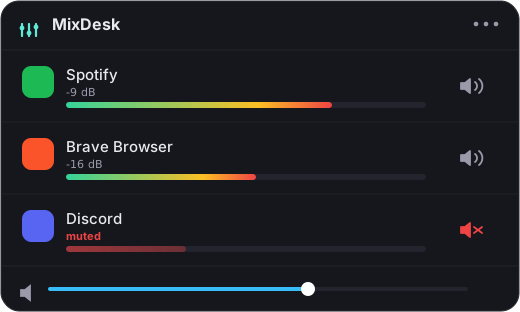
Here’s what fast actually looks like. Every app that’s currently making sound sits in a single list in your menu bar, each with its own mute button. You click the menu-bar icon, spot the noisy app, and hit its mute. Done, with no app-switching or tab hunting, and no guessing which app is to blame.
That’s what MixDesk is built for. Open the menu and you get a live list, Spotify, your browser, a game, a video call, whatever is currently playing, each with a meter that moves in real time. The loud one is the one with the bouncing level, so you spot it instantly. Click the speaker next to it and that app goes silent while everything else keeps playing. Click again to bring it back.
Two clicks total from a cold start: one to open the menu, one to mute. And because the meters show you who’s loud, you never waste time identifying the source.
Under the hood, MixDesk uses the Core Audio process-tap API that Apple shipped in macOS 14.2. That’s Apple’s own supported way to divert an app’s audio, so the mute is real and immediate, with no virtual audio driver or system extension wedged in to break later. It runs entirely on your Mac.
Mute is not pause (and that’s usually what you want)
Worth being clear about what muting does, because it surprises people the first time. Muting an app silences it but doesn’t stop it. A muted video keeps playing, and a muted call keeps running. You simply stop hearing it.
That’s exactly right for the moment when all you want is the noise gone right now. You don’t want to pause the autoplaying ad, you want it gone from your ears while your music keeps going. If you genuinely need something to halt, you still pause it inside the app. But for the fast-silence reflex, mute is the tool. (If you specifically wrestle with browsers, there’s a dedicated guide to muting Chrome and Safari.)
One honest limitation
MixDesk’s one-click mute works on any app that makes sound. What it does not do is give you a variable volume slider for arbitrary apps, you can’t set a random app to 40 percent. That per-app slider only works for scriptable music apps like Spotify and Apple Music. For browsers, games, and everything else, it’s mute or full volume.
If you need true variable per-app volume across every app, SoundSource is the honest recommendation, it’s a heavier, pricier tool that does more. But if what you actually want is to kill one app’s sound the instant it starts, a menu-bar mute is faster and cheaper.
The short version
The Mac has no fast built-in way to mute one app, you’re stuck hunting for the source and then for a control. A menu-bar mixer collapses that into a single click: see what’s loud, silence it, leave everything else playing. MixDesk does exactly that. Two-week free trial, then $9 once.
Related reading
- How to mute one app on a Mac without muting everything
- How to see which apps are using audio on your Mac
Frequently asked questions
Is there a keyboard shortcut to mute an app?
macOS has no built-in per-app mute shortcut, and MixDesk mutes with a menu-bar click today, not a hotkey. The system volume keys mute everything at once, not one app. If a single click from the menu bar is fast enough for you, that's the quickest route right now.
Does muting an app quit it?
No. Muting silences the app but leaves it running. A muted video keeps playing, a muted call keeps connecting, a muted download keeps downloading. You just stop hearing it. Unmute and the sound comes right back where it is.
Will the rest of my audio keep playing when I mute one app?
Yes. Muting one app leaves everything else untouched. Your music, your call, and your other tabs keep playing at full volume. That's the whole point, silence the one noisy thing without touching the rest.
Does this work on any app, or only music apps?
One-click mute works on any app that makes sound, including browsers, games, and chat apps. A variable volume slider is different, that only works for scriptable music apps like Spotify and Apple Music. For everything else, it's full-volume or muted.
MixDesk does this for you
A menu-bar mixer with live meters and per-app mute. Free for 14 days.
Try MixDesk free