How to balance sound between apps on macOS
Balancing sound is a different problem from muting. You don’t want an app gone, you want it quieter than the other thing. The game should sit under the voice chat. The background music should duck below the podcast you’re half-listening to. Getting that ratio right on a Mac takes more work than it should, because there’s no single place to set it.
The manual approach
If both apps have their own volume, you can balance them by hand. Turn the game down inside its settings and leave the call app where it is. This works and costs nothing.
Two things make it tedious. First, you’re bouncing between two or three separate volume controls, buried in different places, every time the mix drifts. Second, plenty of apps don’t expose a volume at all, so you can’t turn them down even if you want to. A lot of games only give you a master slider, and some apps give you nothing.
Why the system volume can’t help
It’s tempting to reach for the volume keys, but the system volume moves everything together. Turn it down and the ratio between your apps stays exactly the same, just quieter overall. Balancing is inherently a per-app job, and the one control macOS gives you isn’t a per-app control.
Set the balance from one place
The clean way to balance apps is to have every app’s volume in a single panel, so you can slide one down relative to the others and hear the result immediately.
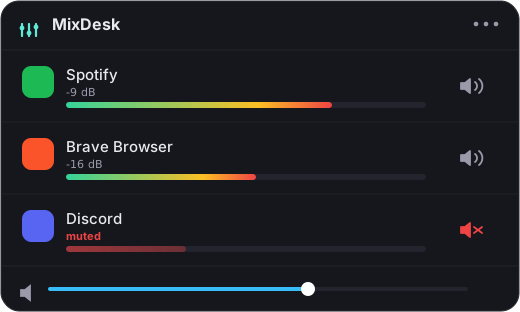
That’s what a menu-bar mixer gives you. In MixDesk, each app that’s playing gets its own volume, right next to a live meter, all in one list. Pull the game down to 40 percent, leave your call at full, and you’ve set the ratio in about two seconds without opening either app. Change your mind, and you nudge it back the same way.
Because everything is in front of you at once, you’re balancing by ear against a visible reference instead of guessing across three separate menus. That’s the part the manual approach can’t match.
A realistic setup
A common one: music at a comfortable level, a game turned down so it’s present but not dominant, and a voice call left at full so you never miss anyone. With per-app sliders in one place, you set that once and adjust on the fly as things get louder or quieter. MixDesk runs a two-week trial, so you can see whether that workflow fits how you actually use your Mac before paying the one-time $9.
Related reading
- How to control the volume of individual apps on a Mac
- Why doesn’t macOS have a volume mixer like Windows?
MixDesk does this for you
A menu-bar mixer with live meters and per-app mute. Free for 14 days.
Try MixDesk free